
📌 This is a simulated use case designed to illustrate how features can be used. The actual interface and workflow may differ slightly depending on the version.
Keep Logging in Bad Network: Offline Edit with Auto Sync Recovery
In real events, network instability is normal. The biggest risk is not wrong math, but missing entries because people stop logging when signal drops.
This case breaks the flow into three parts: log while offline, verify after reconnect, and close with a quick integrity check.
Context: Keep Logging in Bad Network
During a half-day with no signal in the mountains, 12 expenses were logged offline and synced automatically in town, avoiding manual re-entry mistakes.
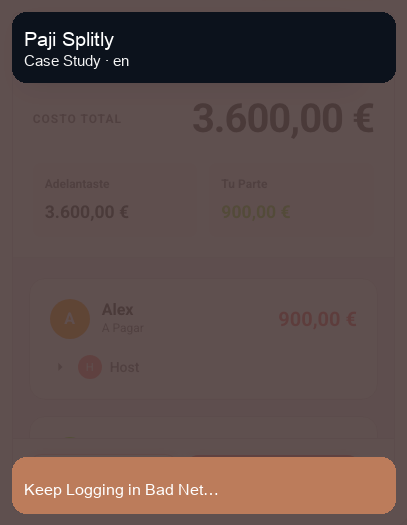
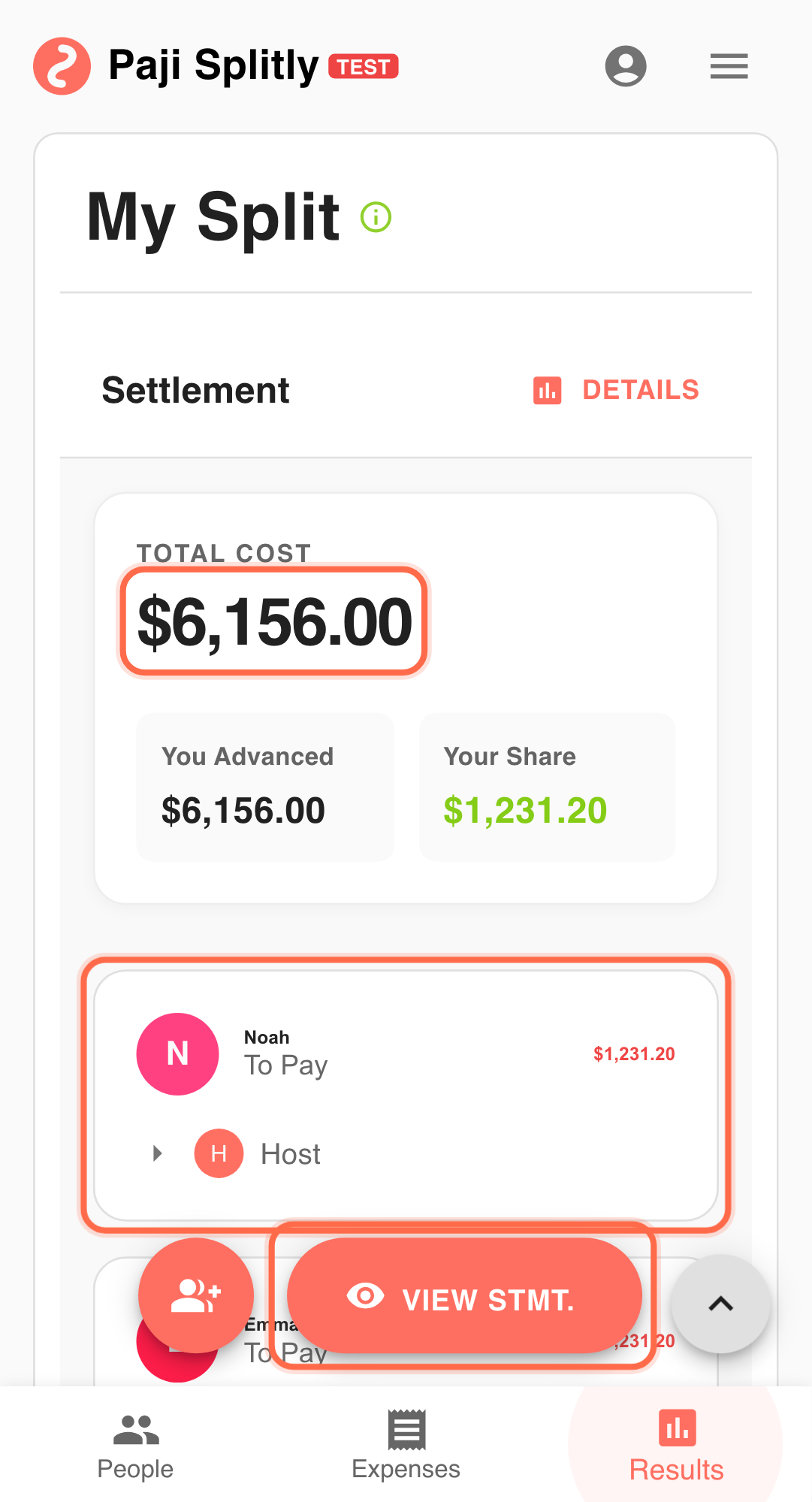
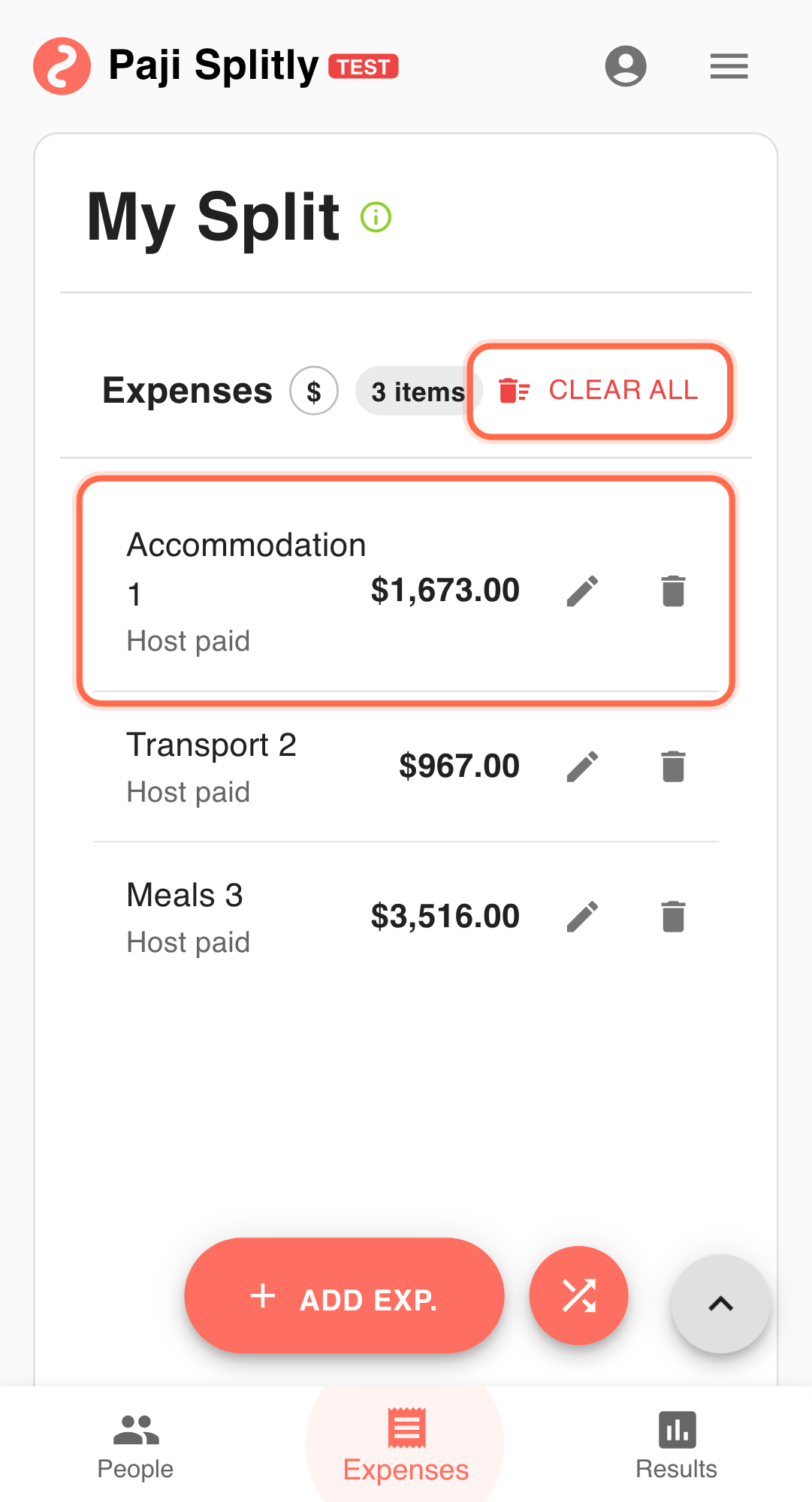
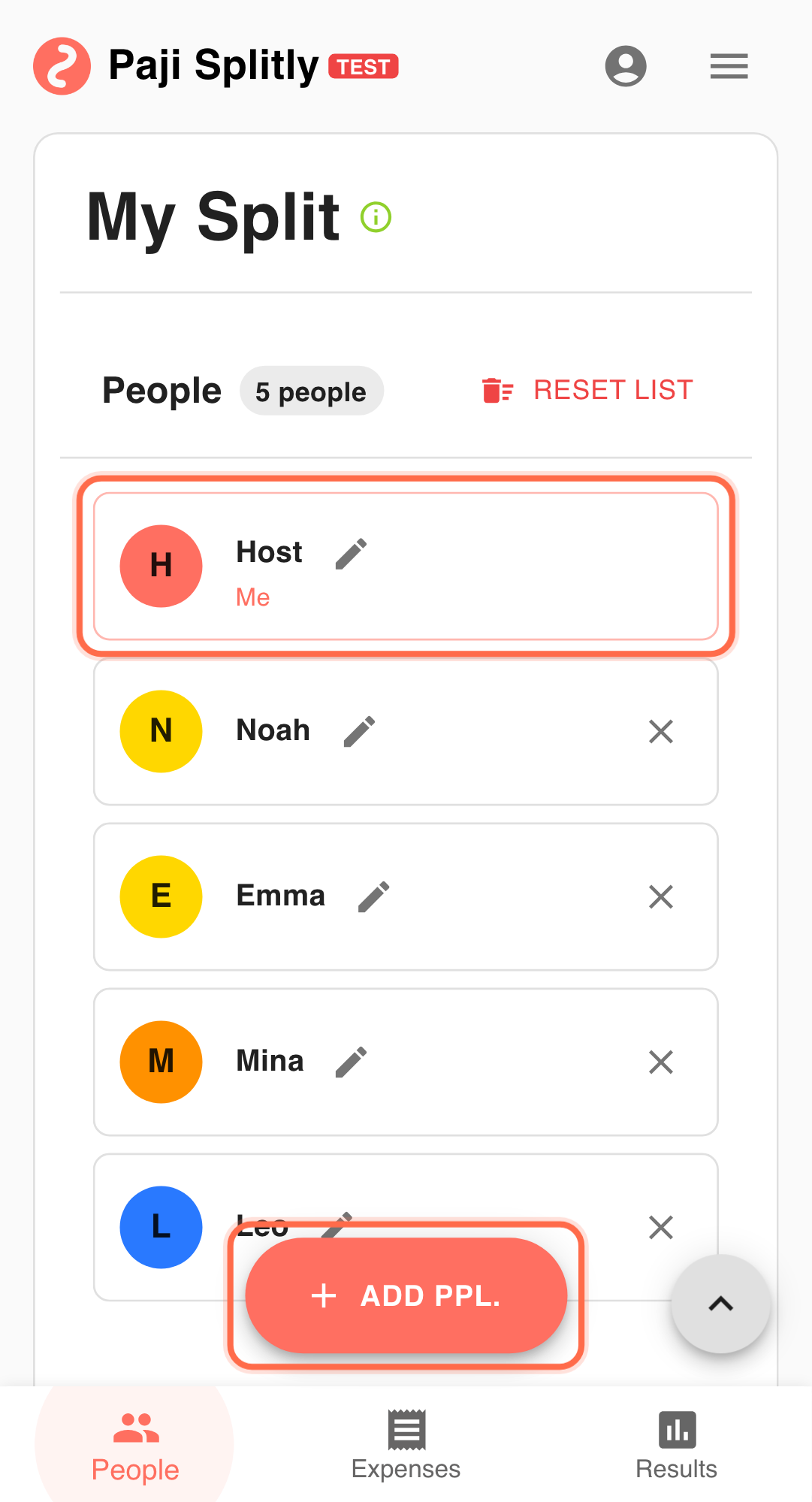
You are splitting bills in a low-signal venue:
- Status shows "Offline mode".
- New expenses keep happening.
- You want reconnect sync without rework.
What to Do While Offline
-
Capture core fields first Record payer, amount, and participants first. Notes can be added later. A 3-minute cadence at this point helps avoid downstream rework. If over time, audit source-of-truth differences first.
-
Use recognizable line names Examples: "Dinner-Round1", "Parking-B2".
-
Avoid duplicate entry ownership If multiple people are logging, confirm who records each expense.
What to Verify After Reconnect
-
Wait for status transition Let it move from "Syncing..." to "Syncing enabled" before leaving.
-
Spot-check recent offline entries Verify a few latest lines to ensure they survived sync.
-
Review "Settlement" direction If direction suddenly looks wrong, check for missing/duplicate/conflict overwrite.
How to Decide on "Conflict"
- Choose "Use Local" when: This device just completed major offline updates and cloud is older.
- Choose "Use Cloud" when: Teammates already completed newer online updates and local is stale.
Rule: choose the version you trust as latest and most complete.
Practical Tactics for Keep Logging in Bad Network
- Tip 1: Prioritize completeness offline, polish details after sync.
- Tip 2: Avoid simultaneous large edits on the same section during syncing.
- Tip 3: Before ending the event, run a 2-minute check: entry count, settlement direction, then payment.
Final Validation for Keep Logging in Bad Network
- After sync completes, compare the total entry count against what you logged offline — if the number is lower, some entries may have been lost or merged during conflict resolution.
- Look for entries with identical amounts and timestamps that could be duplicates created when two devices synced overlapping edits.
- Verify that the sync status indicator reads "Syncing enabled" (not "Syncing...") before treating the current Settlement output as final.
Communication Pattern for Keep Logging in Bad Network
- When the group regains signal, send one message confirming the sync is complete and listing the total number of entries — this prevents others from continuing to log duplicates.
- If a conflict resolution changed any amounts, notify affected members directly rather than relying on them to spot the difference on their own.
- Hold off on sharing the Settlement link until after the post-sync spot-check is done, so nobody acts on numbers that might still shift.
Takeaway from Keep Logging in Bad Network
Offline resilience is about version stability, not just edit availability. With a fixed offline-sync-check rhythm, weak network stops being a billing risk.
Common Risks in Keep Logging in Bad Network
- Risk 1: Two people log the same expense on separate devices while offline, creating a duplicate that inflates the total after sync. Mitigation: assign one person per expense before going offline, or verbally call out "I got this one" as each payment happens.
- Risk 2: A conflict resolution silently picks the older version, discarding a corrected amount entered later. Mitigation: after every conflict prompt, open the affected entry and verify the surviving values match what actually happened.
- Risk 3: Someone closes the app right after seeing "Syncing..." without waiting for it to finish, leaving their latest edits stranded on-device. Mitigation: wait for the status to show "Syncing enabled" and spot-check at least one recent entry before closing.