
📌 This is a simulated use case designed to illustrate how features can be used. The actual interface and workflow may differ slightly depending on the version.
Post-Event Fast Entry: Import Bill + Batch Mode Workflow
After a large event, the bottleneck is often data entry, not math. If you already have a CSV/TXT expense file, retyping everything manually is inefficient.
This case gives two practical paths: use "Import Bill" (Premium) for bulk input, then use "Batch Mode" for quick fixes and remaining items.
Context: Post-Event Fast Entry
After last week's event, 34 transactions were entered within 25 minutes; batch mode captured the structure first, then details, preventing next-day memory gaps.
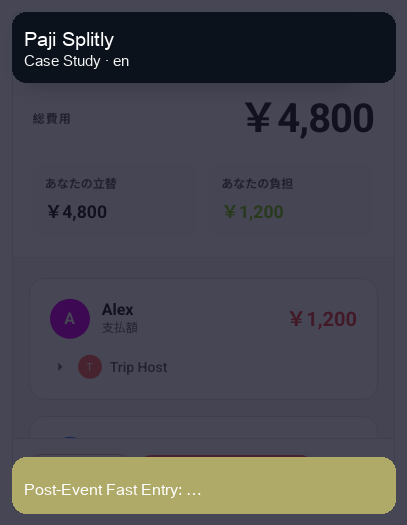
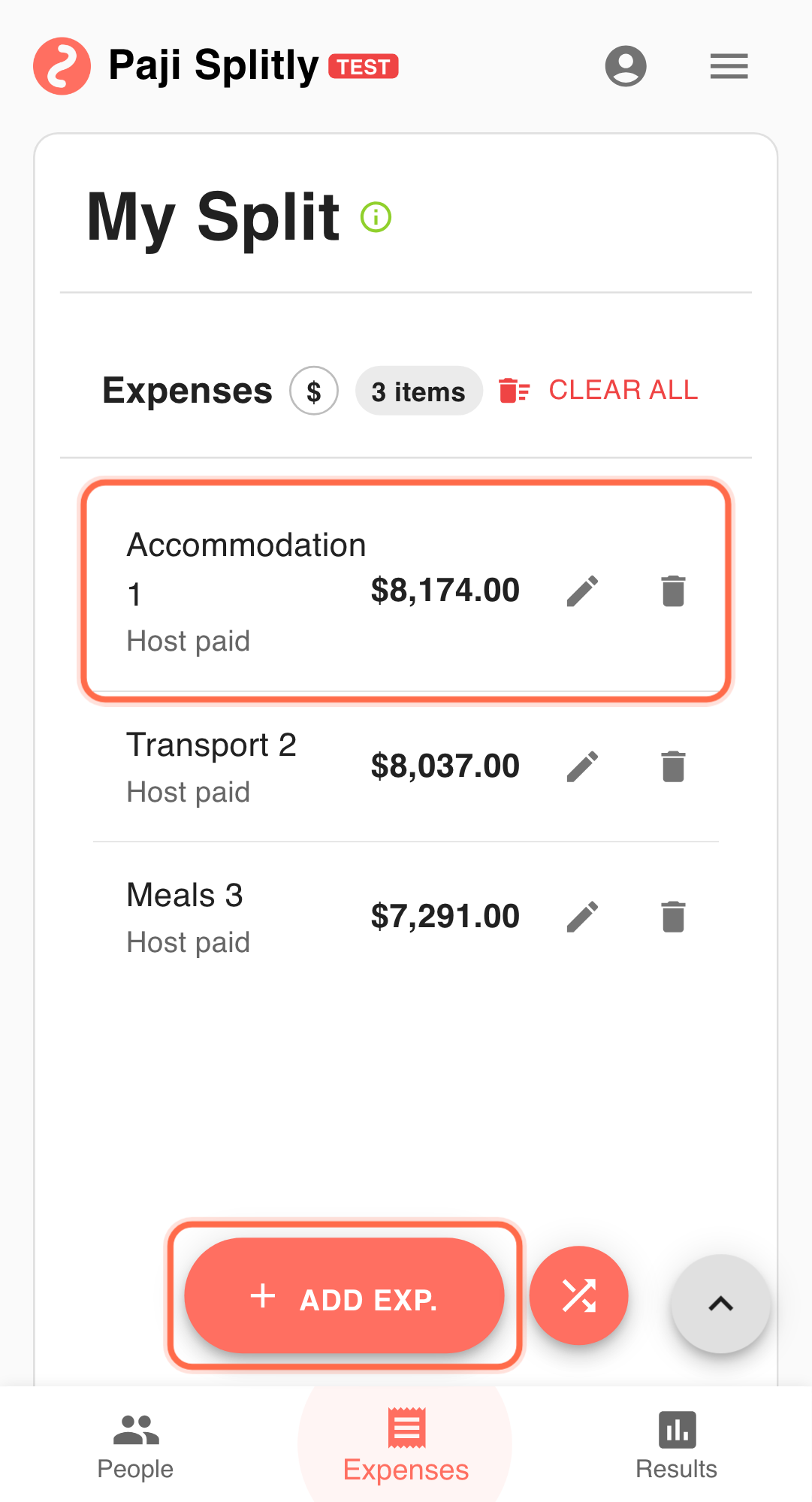
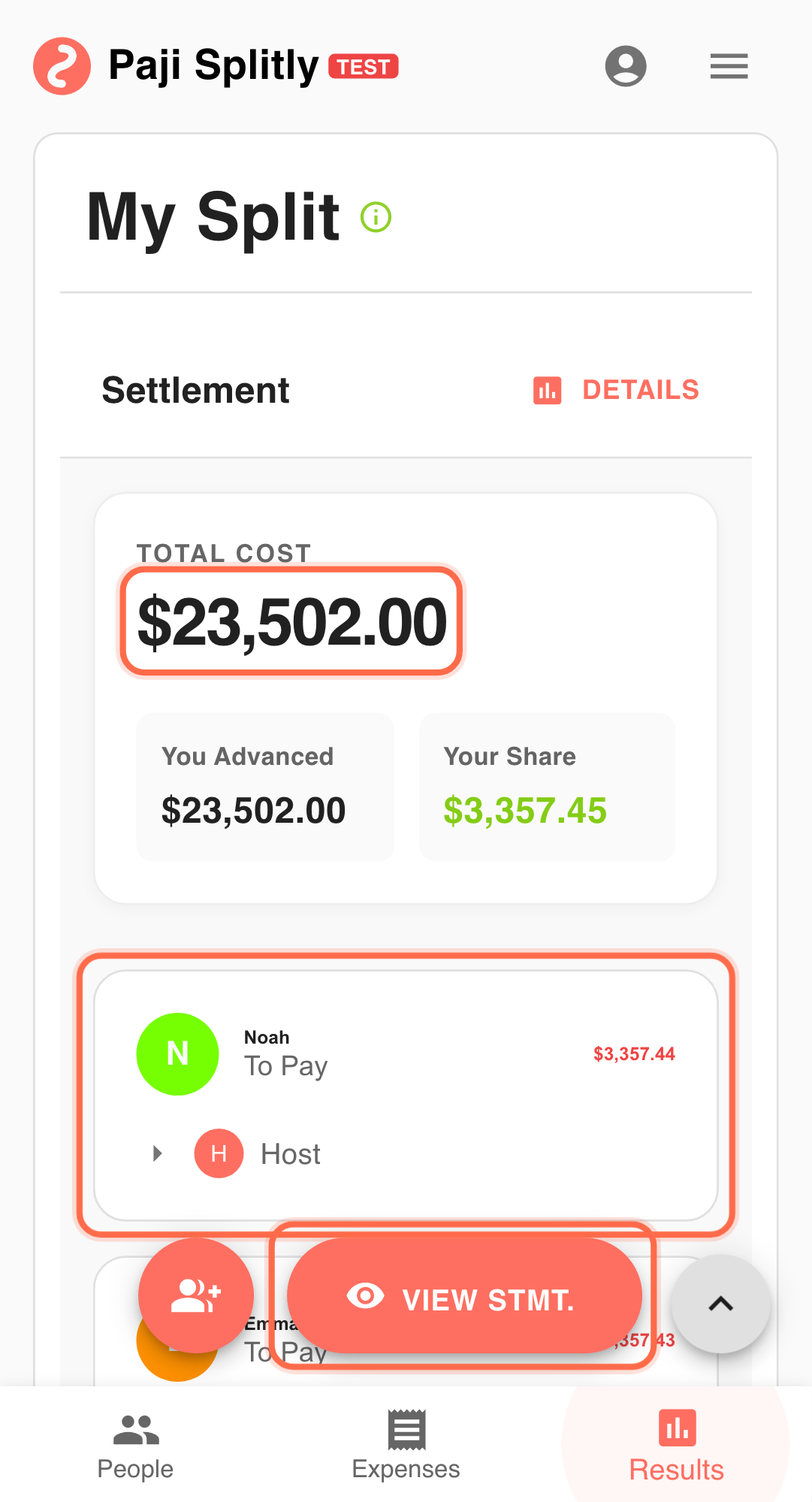
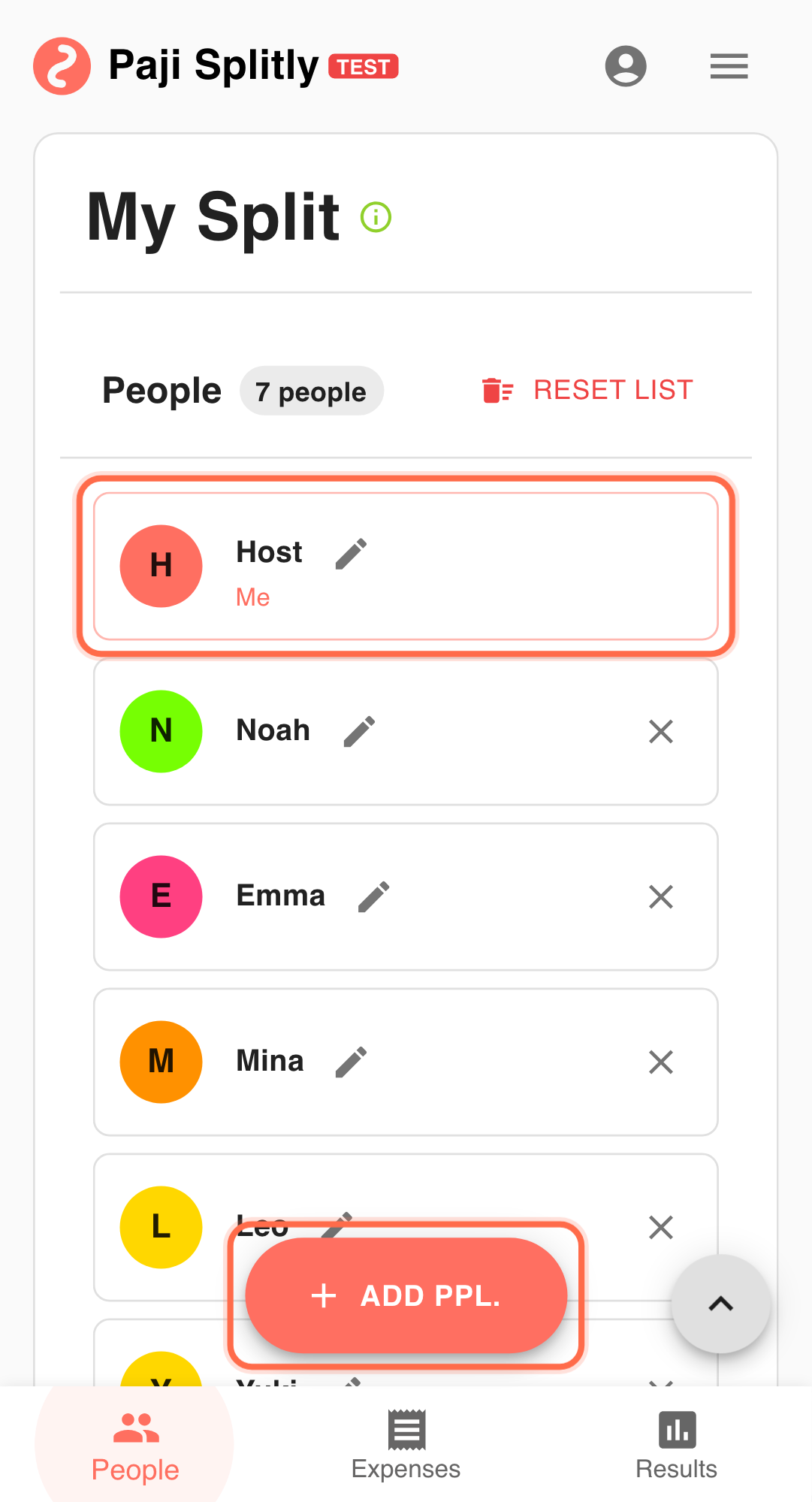
You just finished a 20-person dinner:
- Most expense details are in
.csv/.txt. - Some small costs still need manual entry.
- You want a usable split bill draft in under 10 minutes.
Path A: Use "Import Bill" (Premium)
- Open the bill and click "Import Bill". This checkpoint is most effective as a short review of around 3 minutes; longer cycles usually signal unresolved scope conflicts.
- Use "Upload File" to select
.csvor.txt. - Confirm format, then click "Import".
- Review the imported result in "Settlement".
Path B: Use "Batch Mode" (available to all users)
- Open "Add Expense" and switch to "Batch Mode".
- Enter item, amount, and payer, then click "Add" per item.
- Click "Done" to save all queued entries.
- Return to "Settlement" for final balance checks.
Why Both Paths Matter
- "Import Bill" is fastest when structured files are ready.
- "Batch Mode" is reliable for fixes and edge items.
- Combining both usually gives better speed and accuracy than one path alone.
Practical Tactics for Post-Event Fast Entry
- Tip 1: Import major items first, then patch the rest in Batch Mode.
- Tip 2: Validate payer and amount right after import before settling.
- Tip 3: If a Premium dialog appears, switch to Batch Mode and keep moving.
Final Validation for Post-Event Fast Entry
- Compare the imported CSV line count against the bill's expense count to catch dropped or duplicated rows during import.
- Spot-check that payer fields survived the import correctly, since CSV column mapping can silently swap payer and participant columns.
- After patching remaining items via Batch Mode, confirm totals in Settlement match the original receipts before sharing.
Communication Pattern for Post-Event Fast Entry
- Share the bill only after both import and Batch Mode entries are complete; partial shares cause confusion when new items keep appearing.
- Ask attendees to flag missing expenses within a set window (e.g., 24 hours) rather than accepting corrections indefinitely.
- If payer disputes arise from the imported file, show the original CSV row as evidence instead of debating from memory.
Common Risks in Post-Event Fast Entry
- Risk 1: The CSV file has inconsistent column order or encoding, so imported amounts land in the wrong fields. Mitigation: preview the first few rows after import and verify amounts match the source file before continuing.
- Risk 2: Items entered via Batch Mode overlap with rows already imported, creating duplicate charges. Mitigation: sort the bill by item name or amount and scan for near-identical entries before finalizing.
Takeaway from Post-Event Fast Entry
Reliable reporting depends on one trusted version and traceable line items. Keep both, and decisions stay practical.