
Start on Phone, Finish on Desktop: Cross-Device Sync Workflow
Most cross-device failures are not technical outages. They are version-hand-off mistakes: editing before sync settles, or continuing in a different account context.
This case provides a practical handoff sequence for Paji Splitly so phone-to-desktop editing stays on one version.
Context: Start on Phone, Finish on Desktop
In last month's cross-device reconciliation, 11 expenses were added on phones and 6 on desktop; cloud sync eliminated two manual re-entries and cut final review time to 15 minutes.
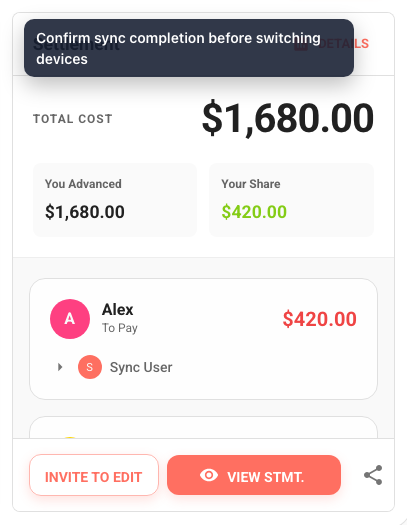
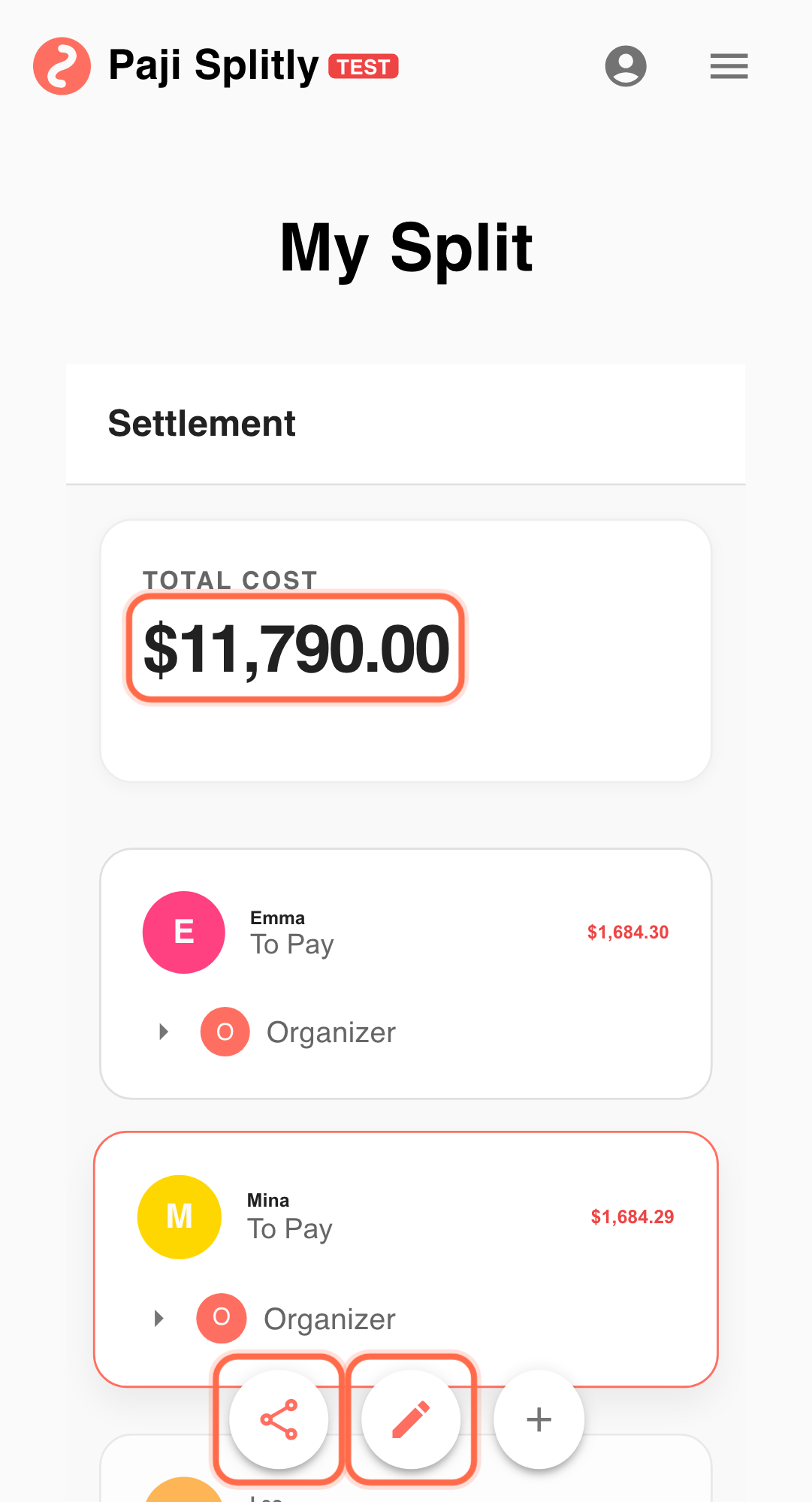
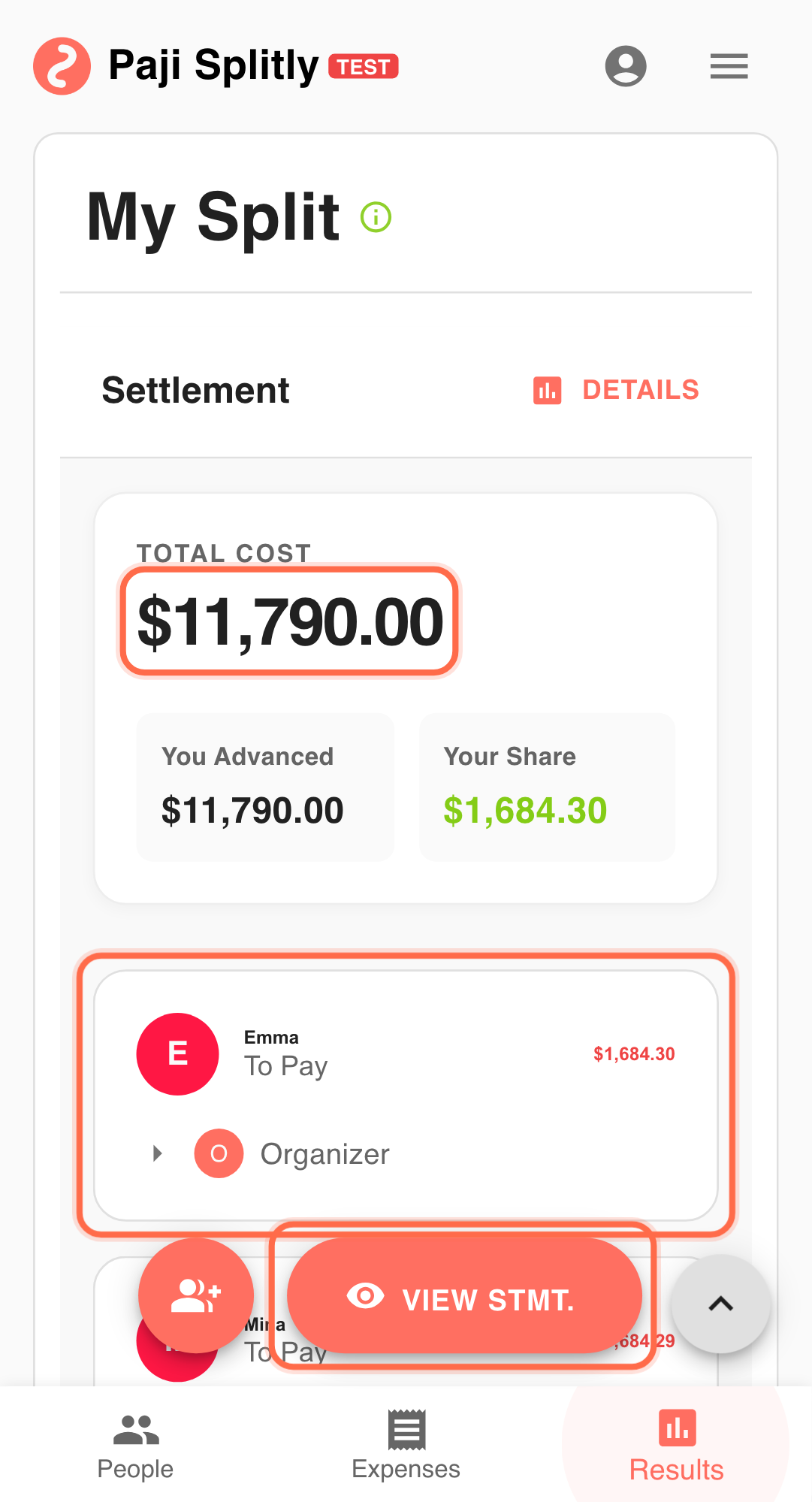
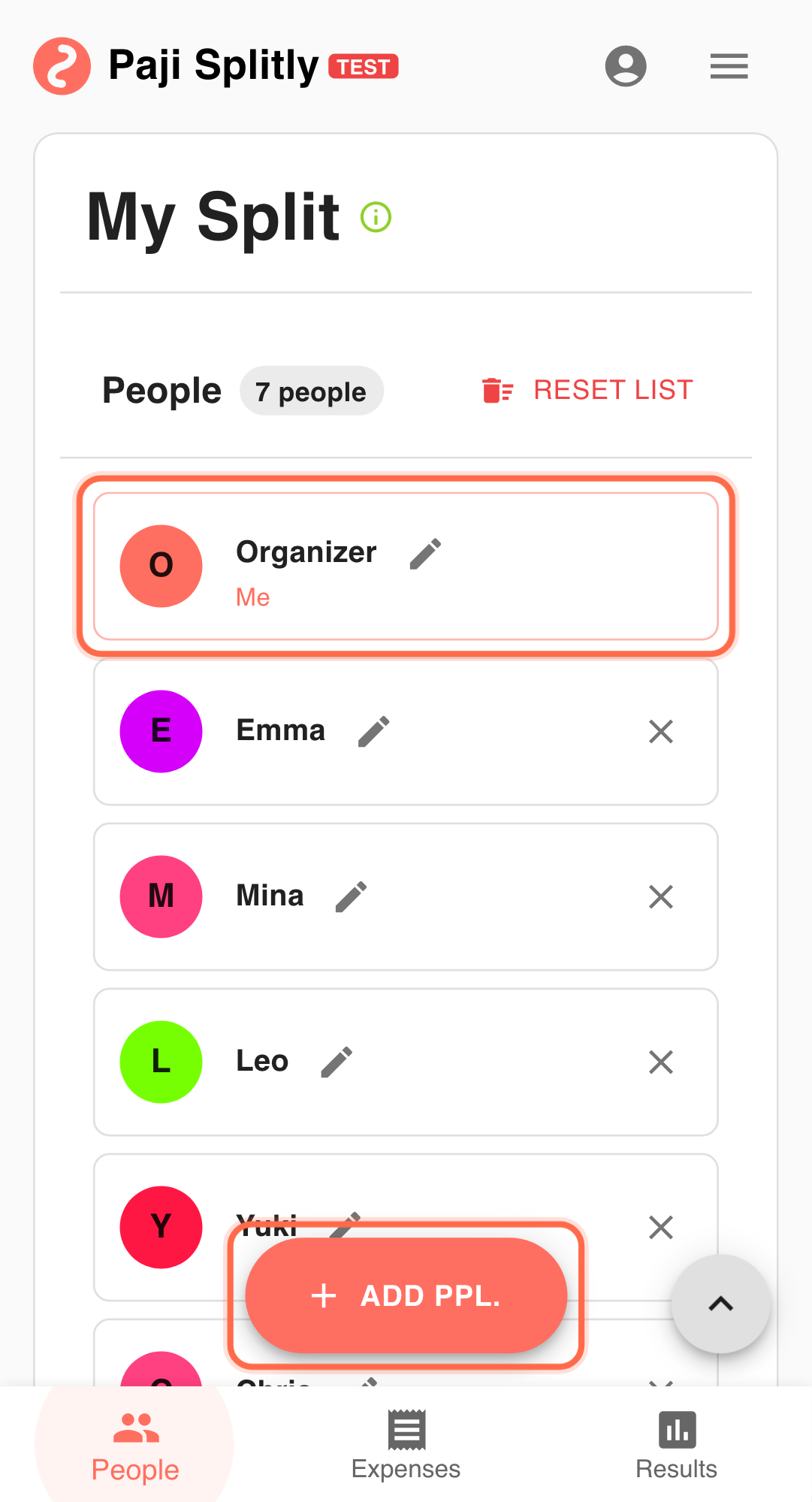
Tip: Verify sync completion before device handoff, then continue edits on the same bill version.
You start a split bill on your phone during dinner, then continue at home on desktop:
- Participants and core expenses are already entered.
- Detailed cleanup is easier on desktop.
- You want zero re-entry and no branch versions.
Operational Flow for Start on Phone, Finish on Desktop
-
Log in and confirm sync is enabled Cross-device continuity starts with account consistency. A fast 3-minute review works best here; if you exceed it, pause and resolve duplicate or missing entries before proceeding.
-
Capture high-forgetfulness entries on phone first Record on-site expenses that are hard to recall later.
-
Before switching devices, check phone sync state If still "Syncing...", wait until stable.
-
Open the same bill on desktop using the same account Spot-check a few recent phone entries before detailed edits.
-
Finalize in "Settlement" and share one statement version Use "View Settlement Statement" as the execution reference.
Common Drift Patterns and Prevention
- Drift 1: Two devices heavily edit the same section at once Prefer one active editor at a time.
- Drift 2: Closing page before sync completion Do not close while status is still "Syncing...".
- Drift 3: Account mismatch across devices Always verify account identity before continuing edits.
Practical Tactics for Start on Phone, Finish on Desktop
- Tip 1: Phone for rapid capture, desktop for structured cleanup.
- Tip 2: First action after switch: verify 3 critical lines.
- Tip 3: In team workflows, define one final-version publisher.
Final Validation for Start on Phone, Finish on Desktop
- After switching to desktop, spot-check at least 3 entries that were added on your phone to confirm they synced with correct amounts and participants.
- Verify you are logged into the same account on both devices — a mismatch means your edits may land in a separate, orphaned bill.
- Run "Settlement" on the desktop as your final reference and make sure it reflects every phone-side entry before sharing.
Communication Pattern for Start on Phone, Finish on Desktop
- Do not share a settlement link from your phone while you still plan to edit on desktop — wait until the desktop pass is done so everyone sees the same version.
- If collaborators are also editing, agree on a "handoff window": only one person edits at a time, and they confirm when they are done.
- When the final version is ready on desktop, share it once to the group chat and label it as the definitive copy to avoid confusion with earlier phone-shared drafts.
Takeaway from Start on Phone, Finish on Desktop
Cross-device sync quality depends on handoff discipline. When pre-switch and post-switch checks are fixed, continuity becomes reliable.
Common Risks in Start on Phone, Finish on Desktop
- Risk 1: You close the browser on your phone before sync finishes, then open the bill on desktop and start editing — your phone entries never arrive, creating a silent gap. Mitigation: always wait for the sync indicator to show "Up to date" before closing any device.
- Risk 2: You log in with a different account on desktop (e.g., a personal vs. work Google account), and edits go into a separate bill copy that no one else can see. Mitigation: confirm your account identity on the new device before making any changes.