
No Duplicate Entries in Team Editing: Use Roles + Change Log
In collaborative bills, the common failure mode is not missing data. It is duplicated data. Two people record the same payment and totals drift upward.
This case shows a practical Paji Splitly routine: invite everyone into one bill, apply simple entry roles, use "Bill Modification Log" to identify duplicates, then validate in "Settlement."
Context: No Duplicate Entries in Team Editing
During last weekend's camping trip, 7 people logged 29 expenses in 40 minutes; checking the edit log surfaced 3 duplicate entries and brought the total from $9,860 down to $8,940.
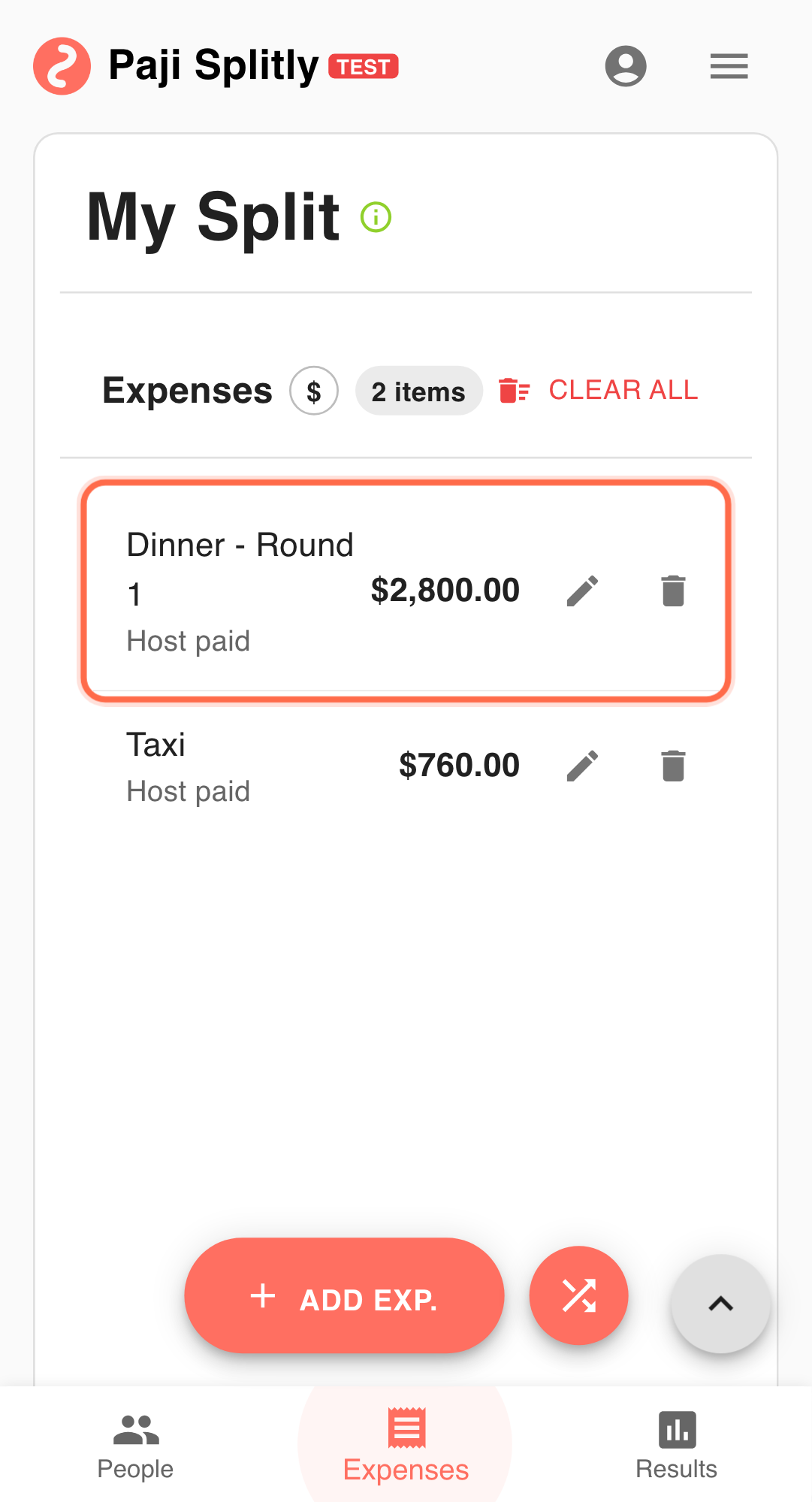
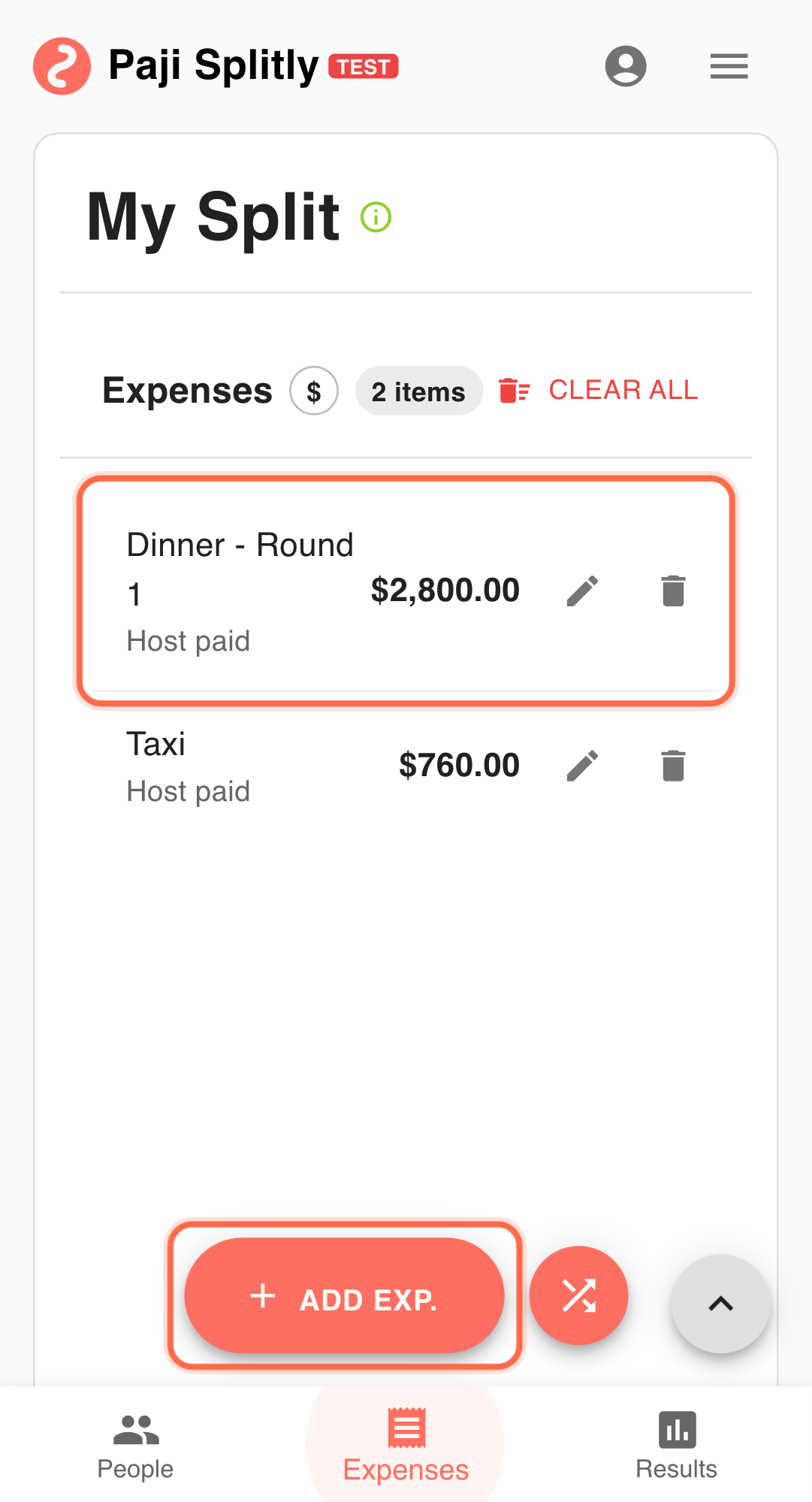
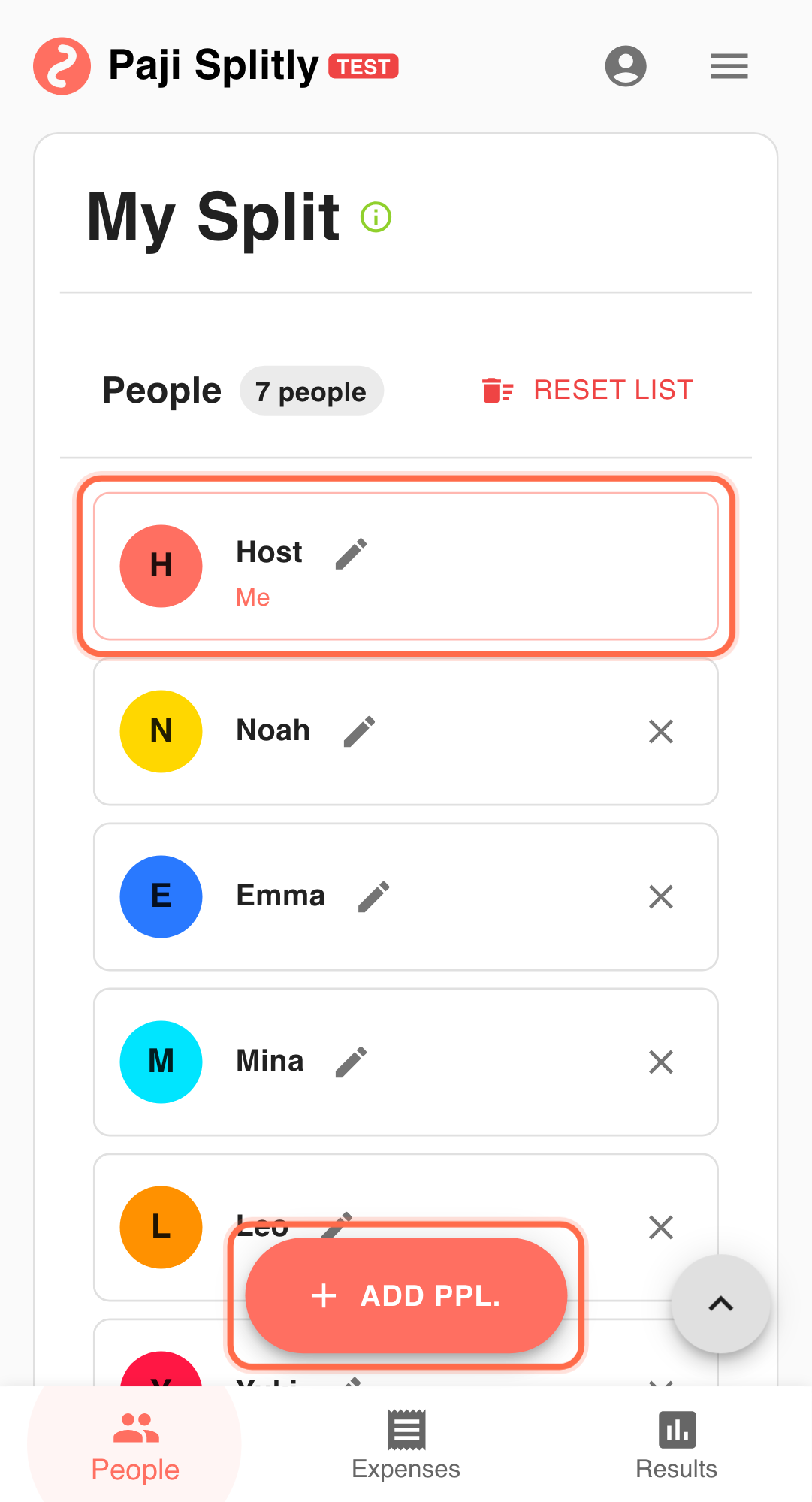
A 7-person trip bill is edited by multiple people:
- Any member may pay during the day.
- Everyone can update the same bill.
- You need high speed without duplicate expense noise.
Step-by-Step Execution for No Duplicate Entries in Team Editing
-
Use "Invite to Edit" for one shared source Keep all entries in one bill, not multiple parallel notes. In practice, keep this checkpoint within about 3 minutes; if it drags, unresolved data alignment is usually the real blocker.
-
Set a simple recording rule For example: payer records the expense, others do not duplicate it.
-
If duplicate is suspected, open "Bill Modification Log" Check who added each similar entry and when.
-
Remove or correct the duplicate entry Resolve obvious duplicates before adding new pending items.
-
Re-check "Settlement" Confirm totals and net balances are back to expected values.
Why This Works
- Role clarity reduces duplicate creation.
- Logs make conflict resolution faster.
- Settlement gives immediate output validation.
Practical Tactics for No Duplicate Entries in Team Editing
- Tip 1: Add merchant keywords in each description.
- Tip 2: Run one daily duplicate review pass.
- Tip 3: Clean duplicates first, then continue normal entry.
Final Validation for No Duplicate Entries in Team Editing
- Open "Bill Modification Log" one last time and confirm every flagged duplicate has been removed or merged.
- Cross-check the total against your original spending estimate — if it still looks inflated, search for entries with the same merchant or timestamp.
- Review "Settlement" balances to make sure no one is being overcharged because of a leftover ghost entry.
Communication Pattern for No Duplicate Entries in Team Editing
- Announce a clear recording rule at the start of the trip: "whoever pays, logs it — no one else adds the same item."
- When a suspected duplicate surfaces, tag the two people involved in the group chat and resolve it before adding more entries.
- After cleanup, post the corrected total in the group so everyone sees the same number going forward.
Takeaway from No Duplicate Entries in Team Editing
Collaboration quality depends on operating rhythm. A shared bill, clear entry roles, and log-based correction prevent duplicates from becoming settlement errors.
Common Risks in No Duplicate Entries in Team Editing
- Risk 1: Two people both record the same taxi or restaurant bill, and neither notices because the descriptions differ slightly. Mitigation: include the merchant name and approximate time in every entry so duplicates are easy to spot in the log.
- Risk 2: A duplicate is deleted, but the wrong copy is removed — taking the correct payer or participant list with it. Mitigation: check "Bill Modification Log" to compare both entries before deciding which one to keep.